Transfer from Your Phone
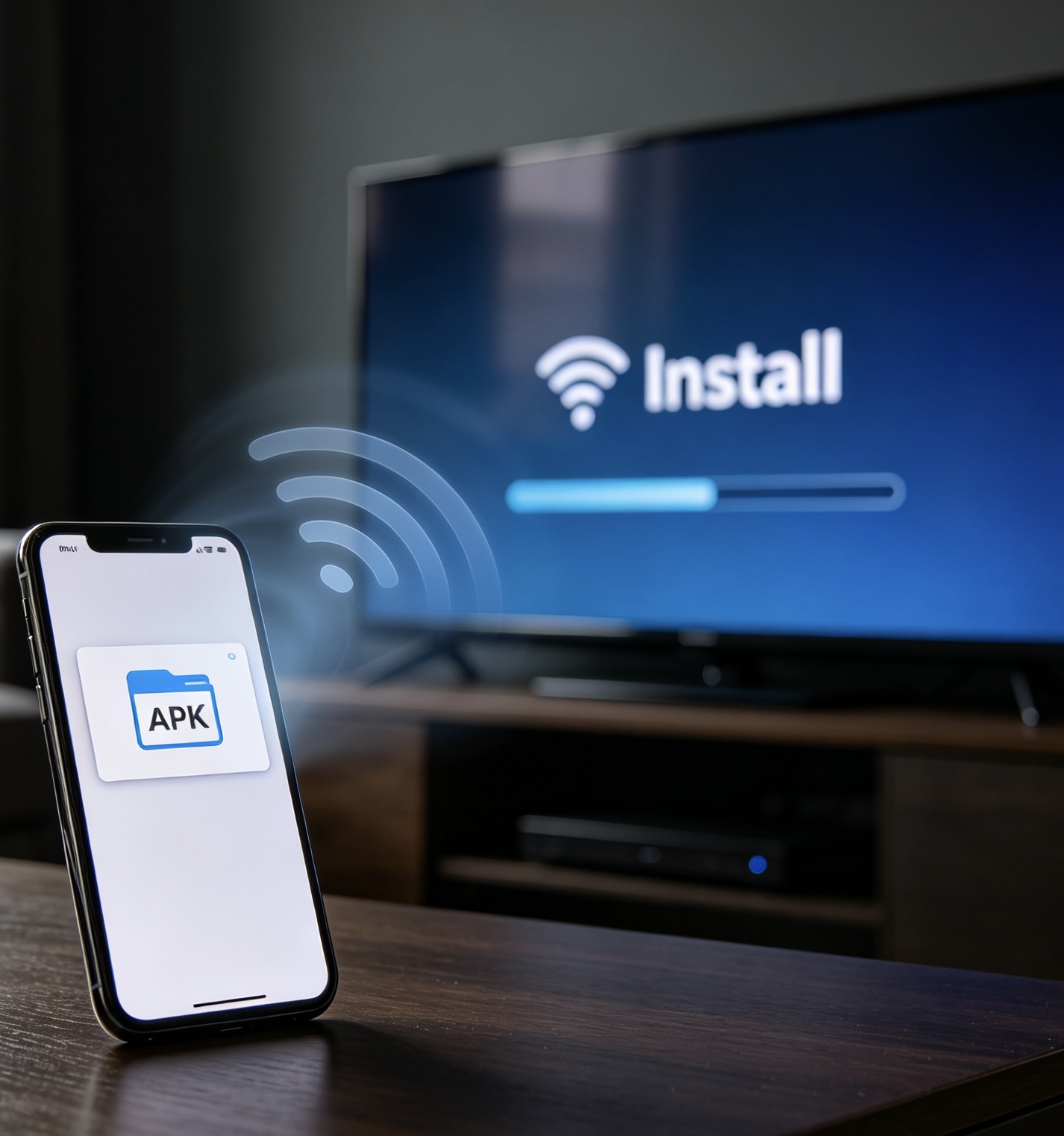
This method is best when you download the APK on your phone first, then transfer it to your TV over the same Wi-Fi network for installation.
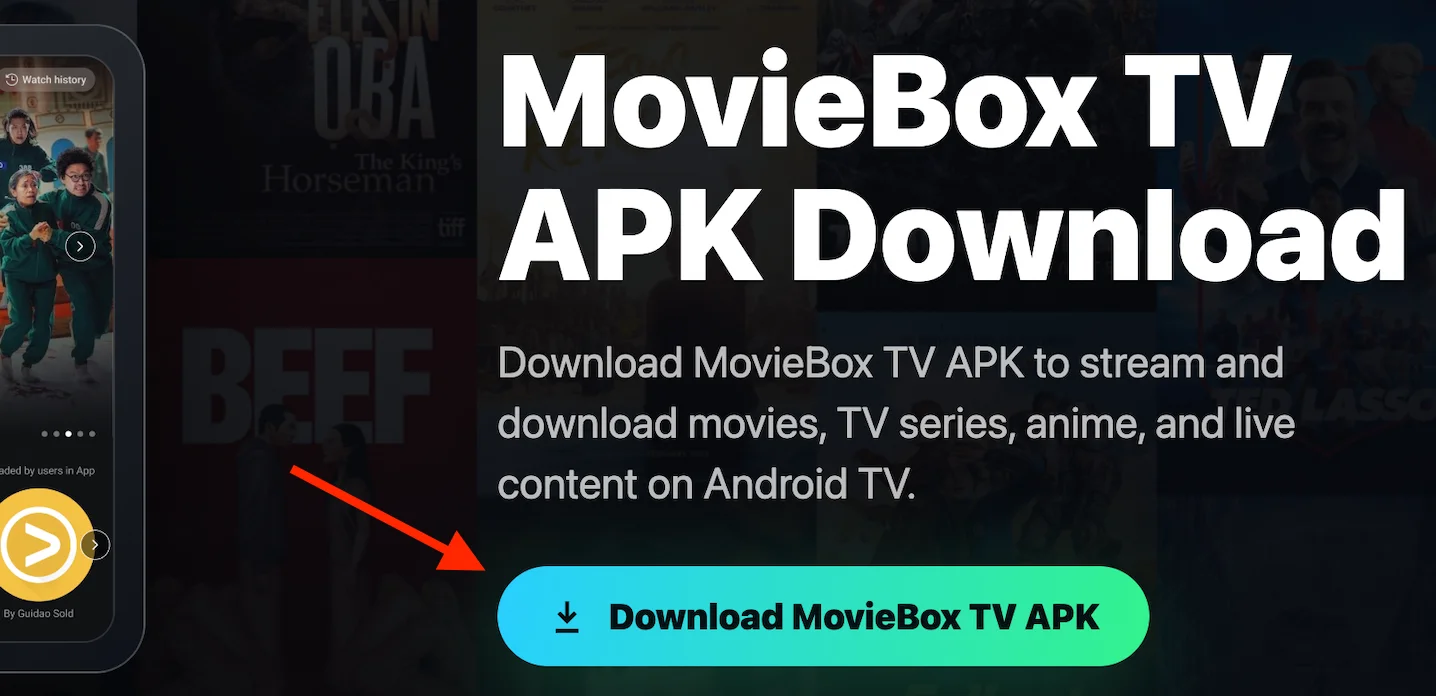
Download MovieBox APK
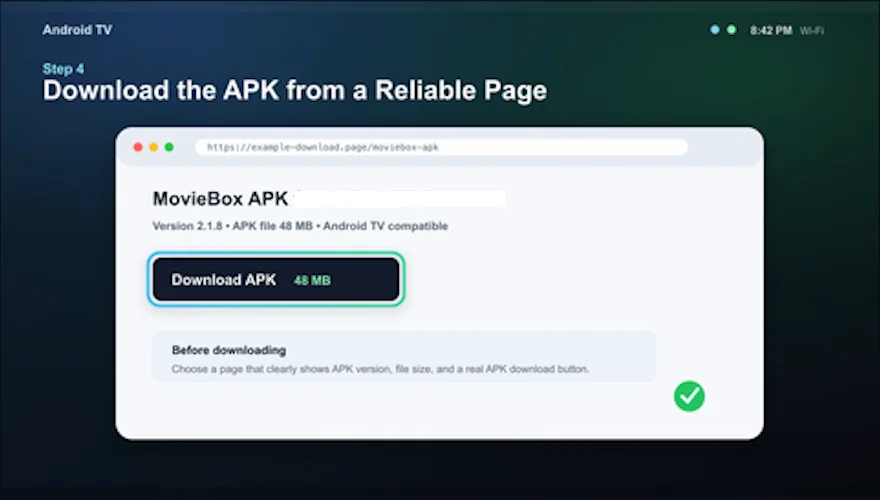
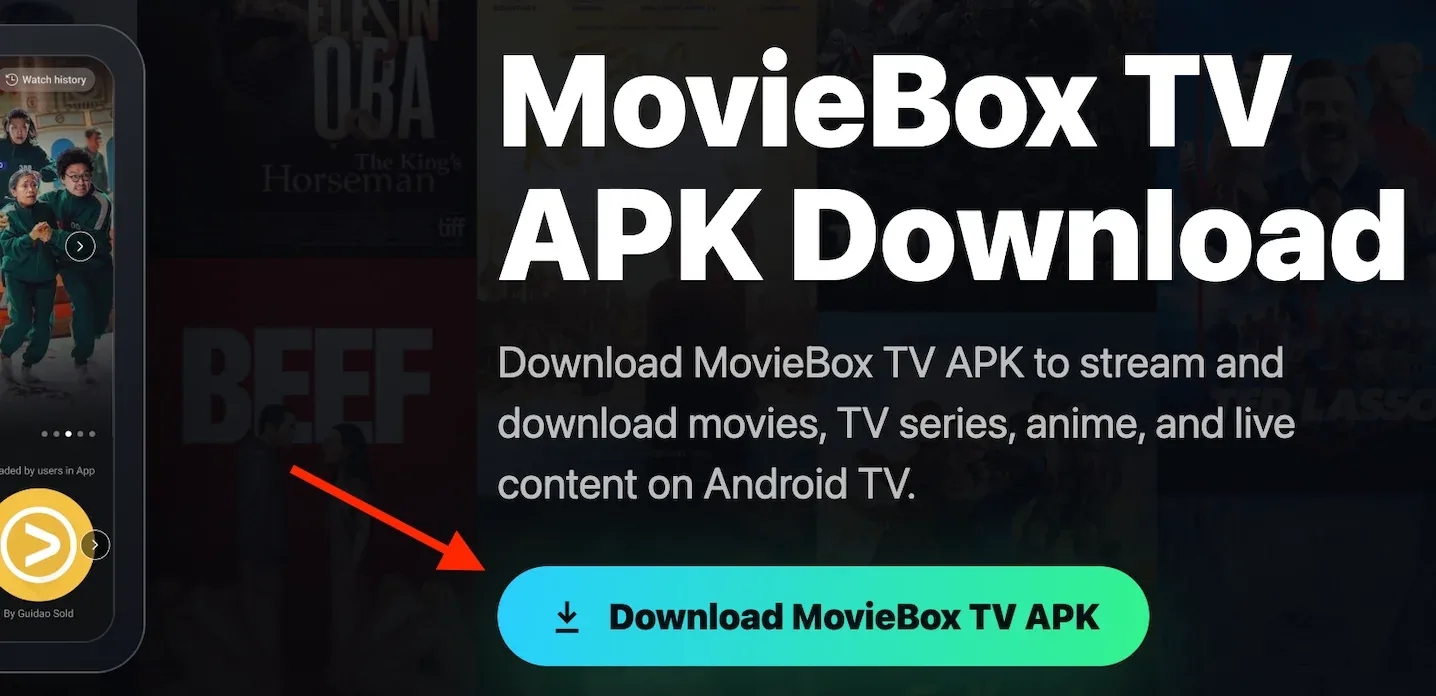
On the MovieBox official website, tap the Download MovieBox TV APK button on the first screen to download the APK to your phone. When your phone shows “Downloading file,” the download has started. If you are using a computer, scan the QR code on the page to download the MovieBox APK directly to your phone.
Install a Transfer Tool
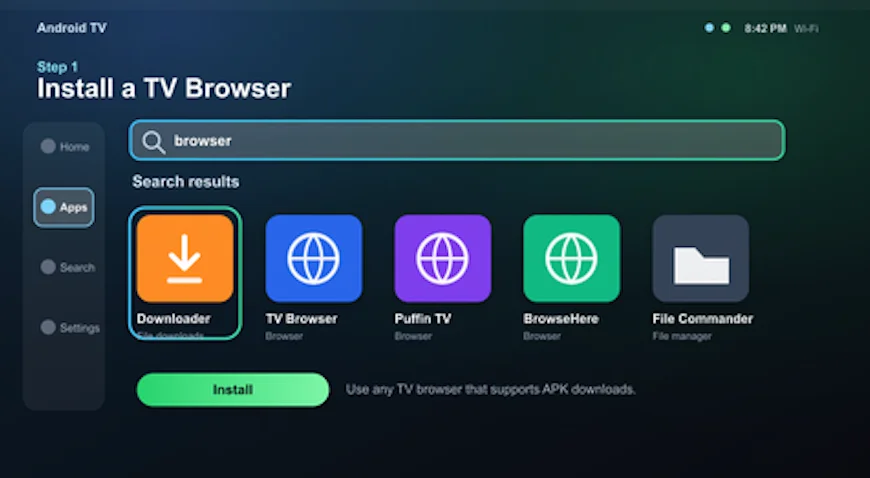
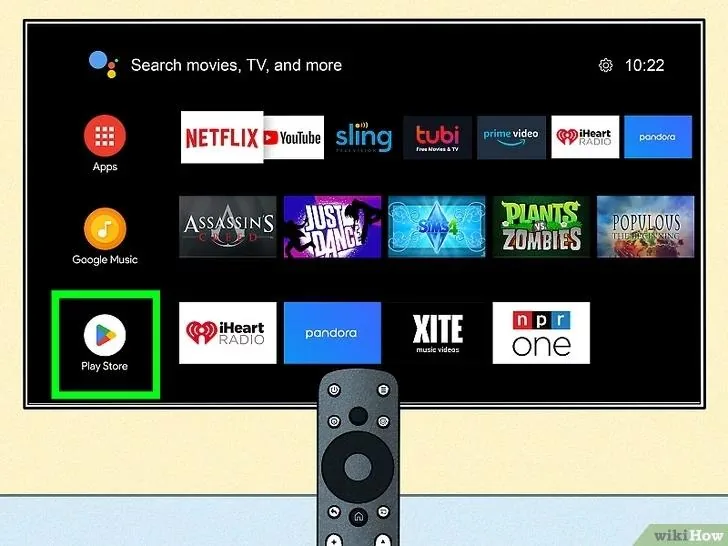
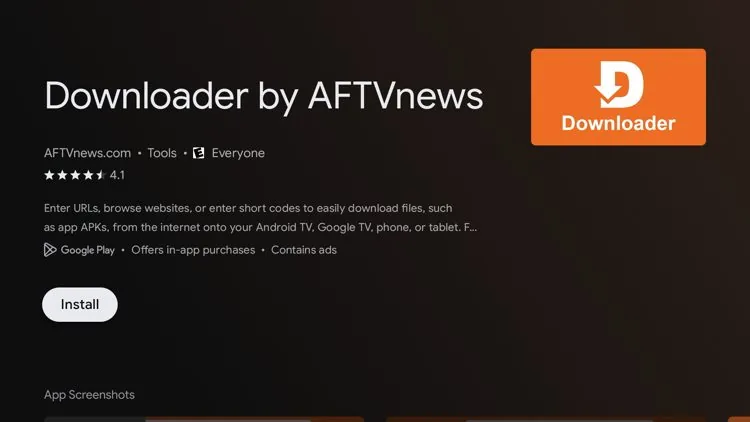
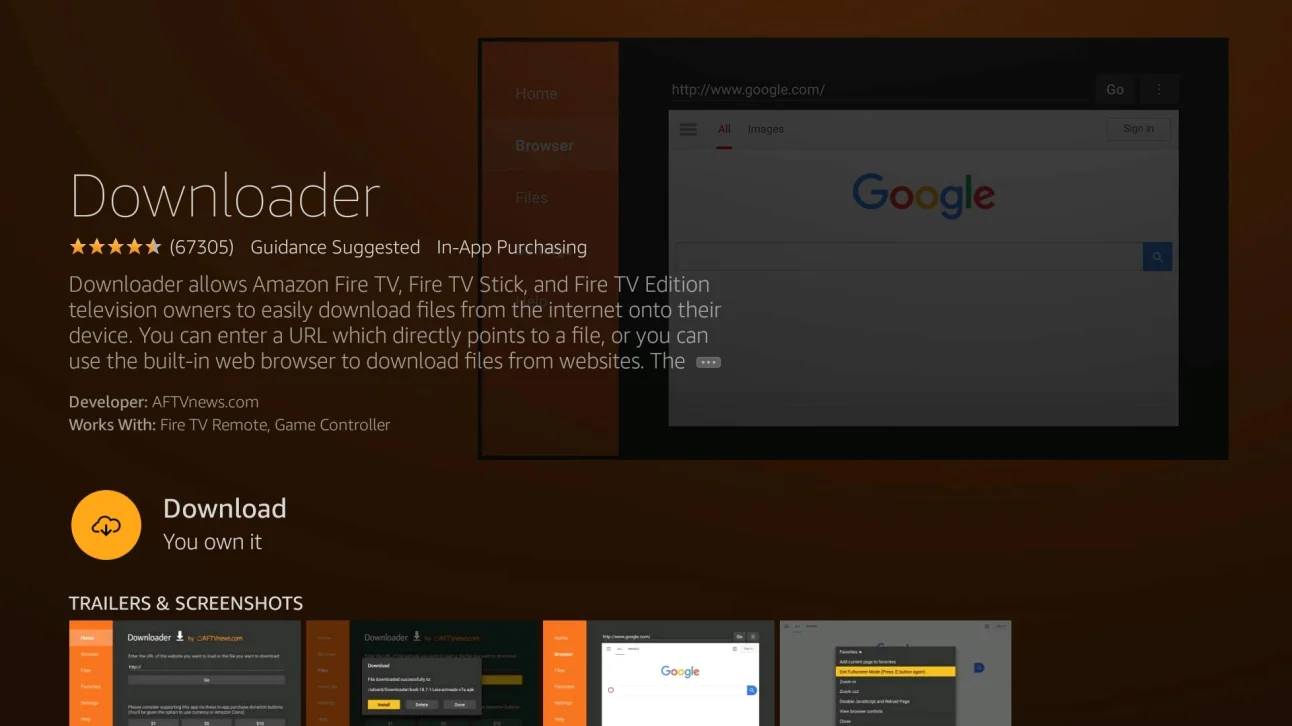
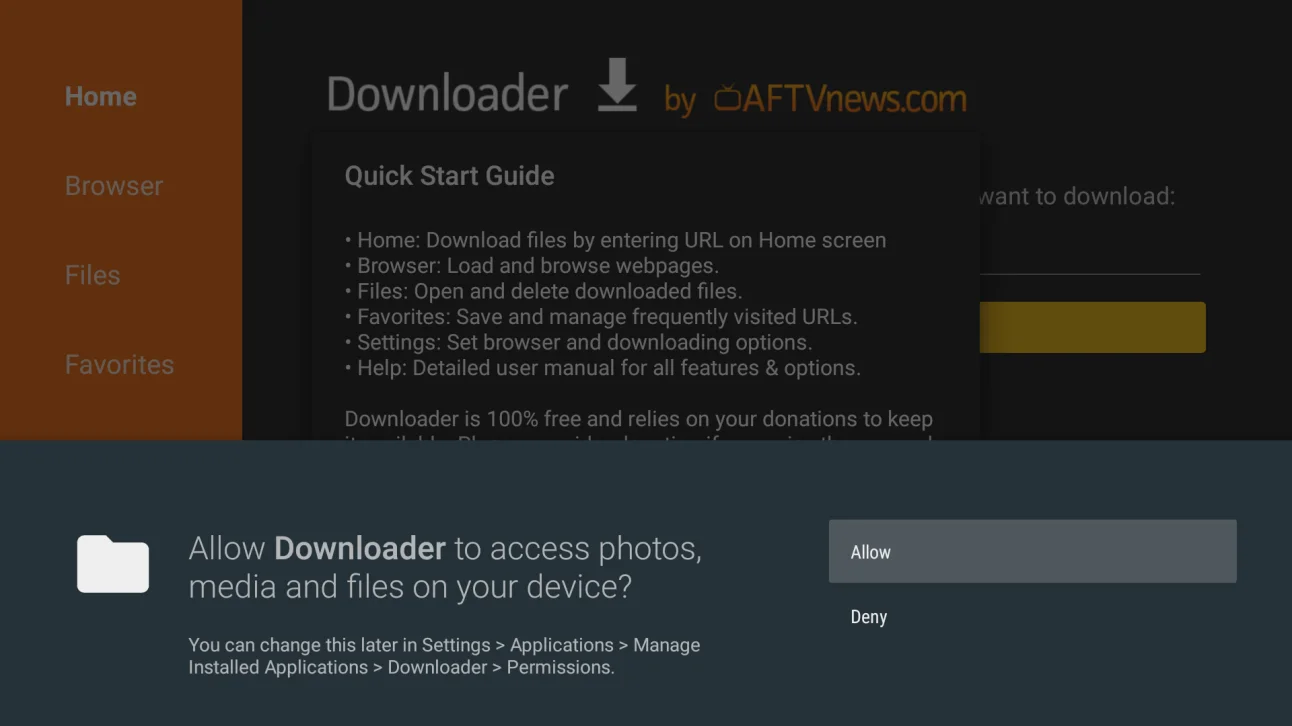
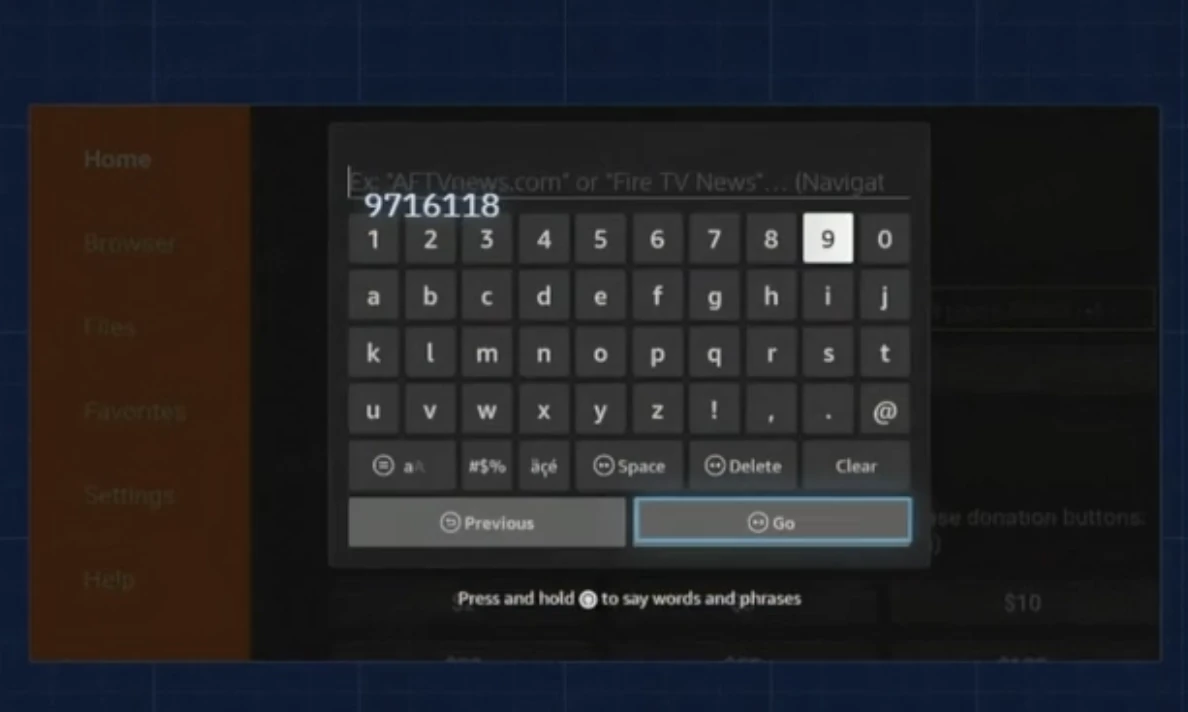
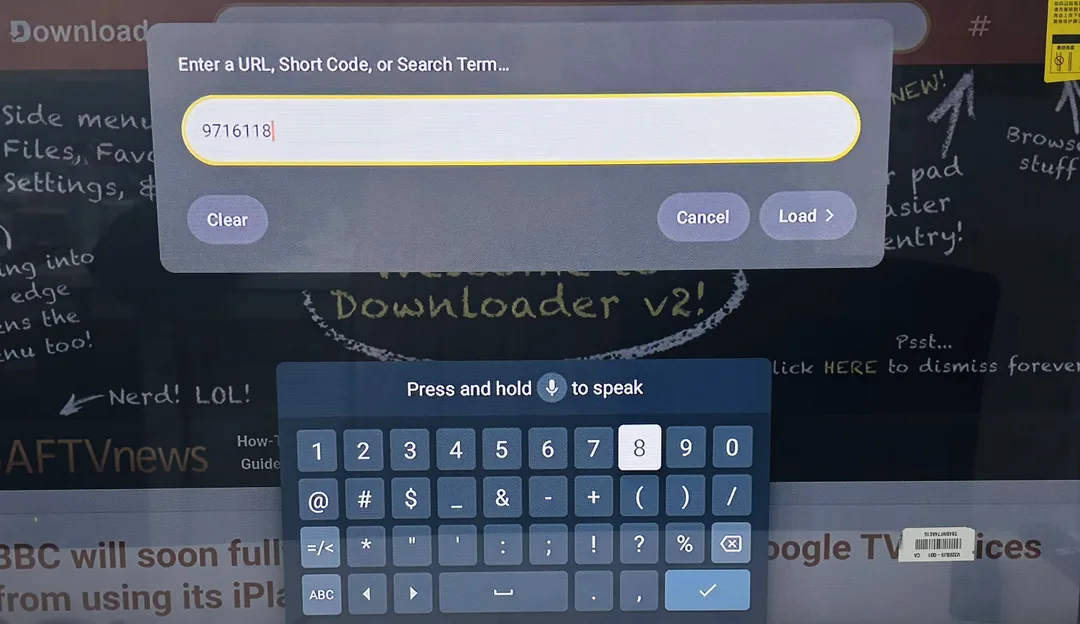
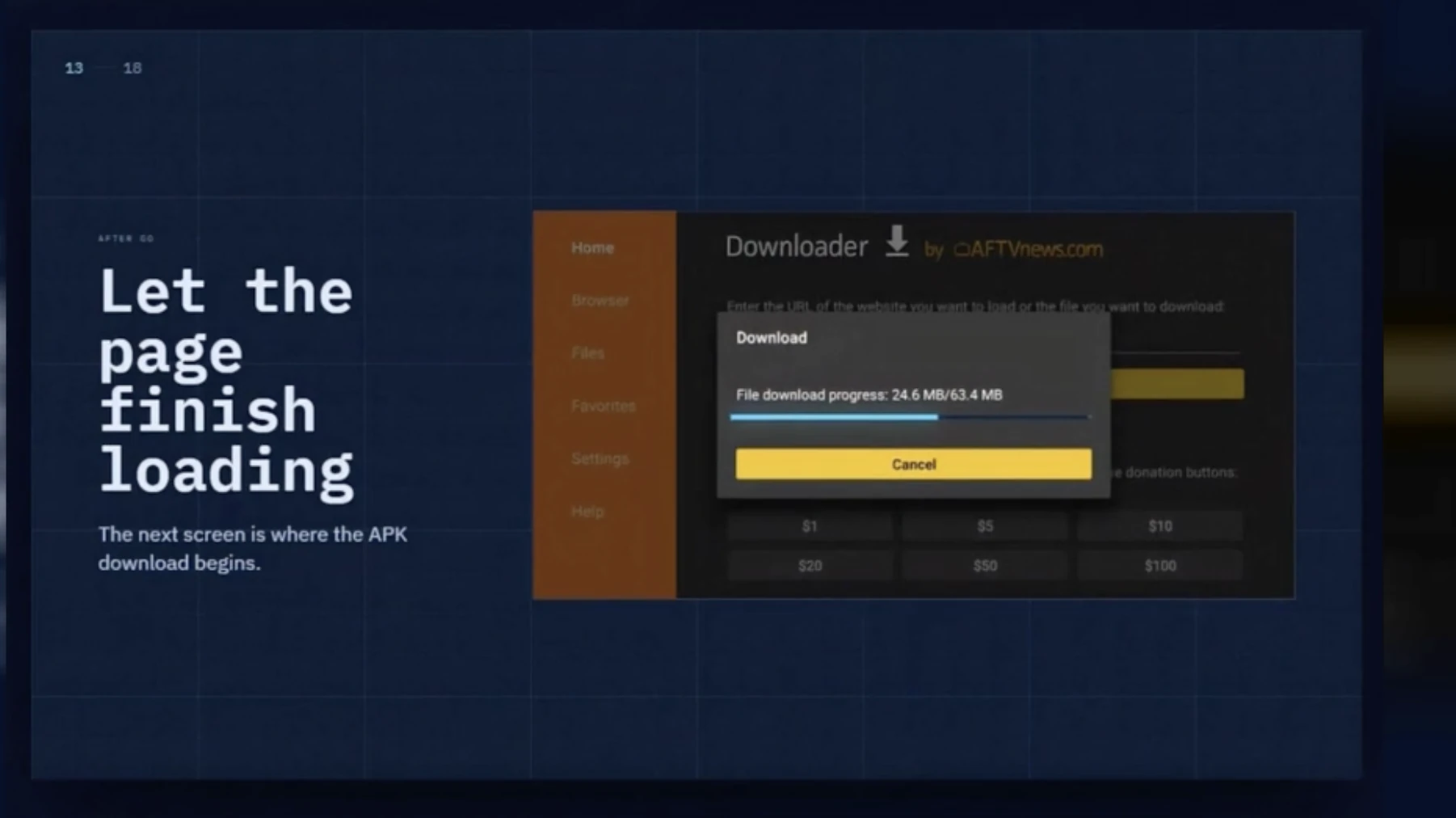
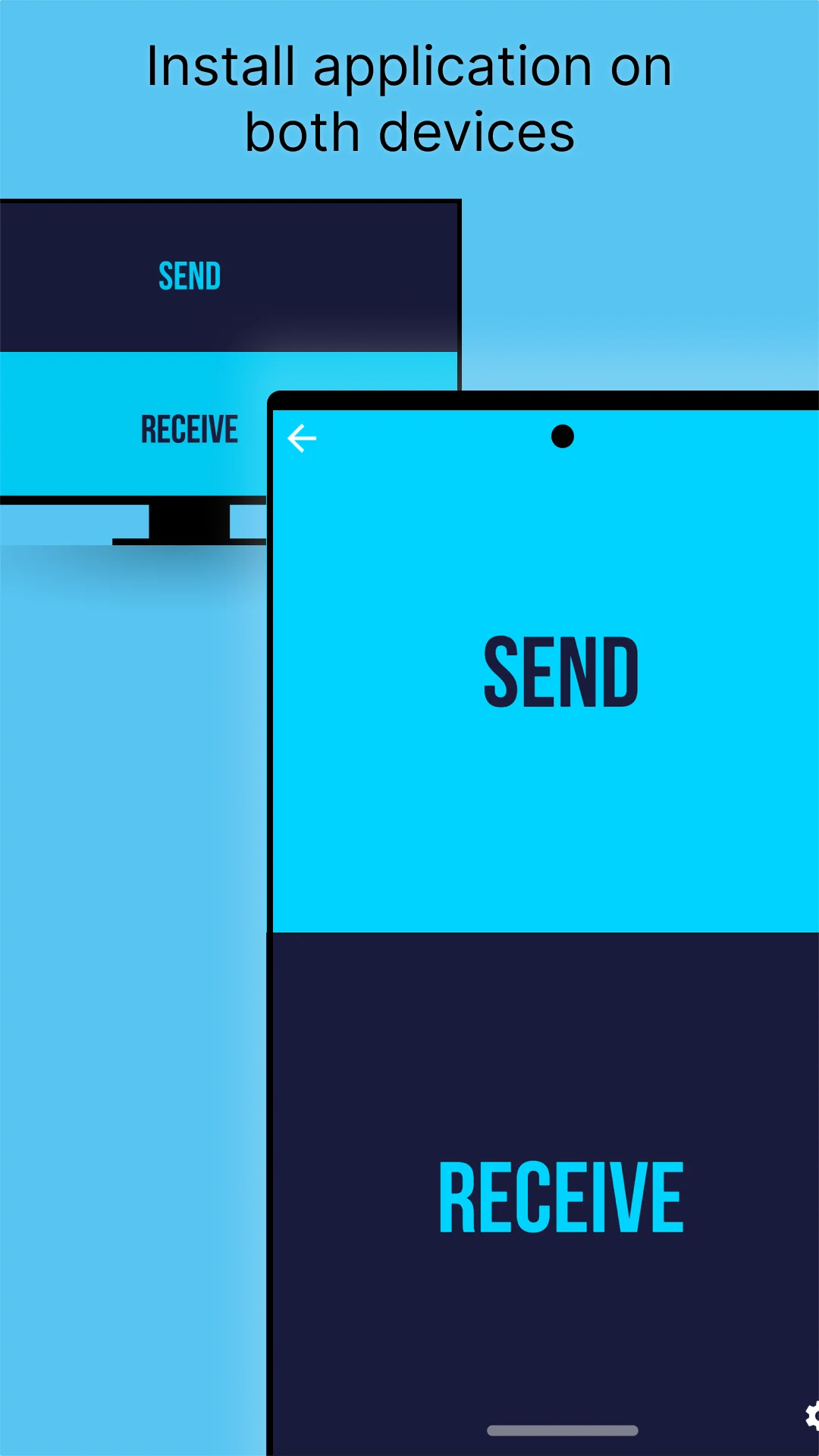
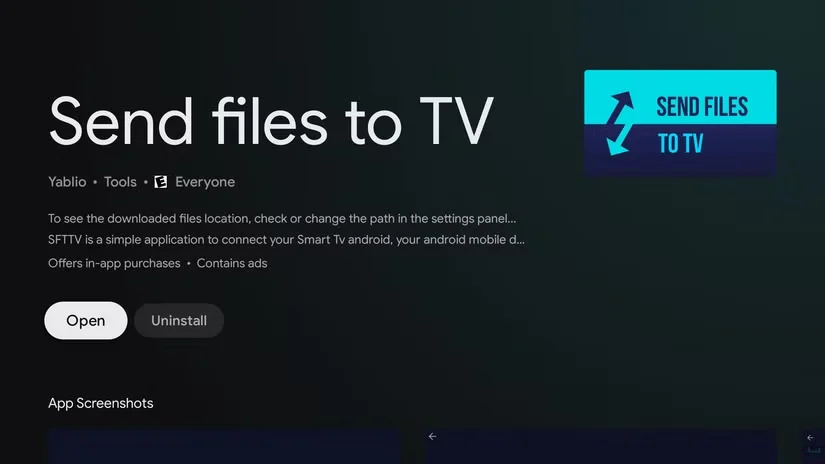
Install a transfer tool on both your phone and TV, such as Send Files to TV. You can search for it in Google Play Store. Other options include LocalSend, X-plore File Manager, File Commander, FX File Explorer, TV File Transfer, and Downloader by AFTVnews.
Open the Tool on TV
Open the transfer tool on your TV.
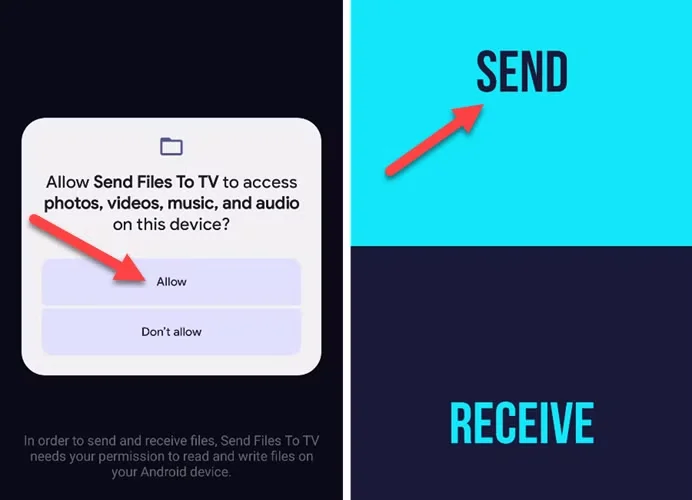
Tap Send on Your Phone
Open the transfer tool on your phone and tap Send.
Find the APK File
In your phone file list, find the APK in the Downloads folder.
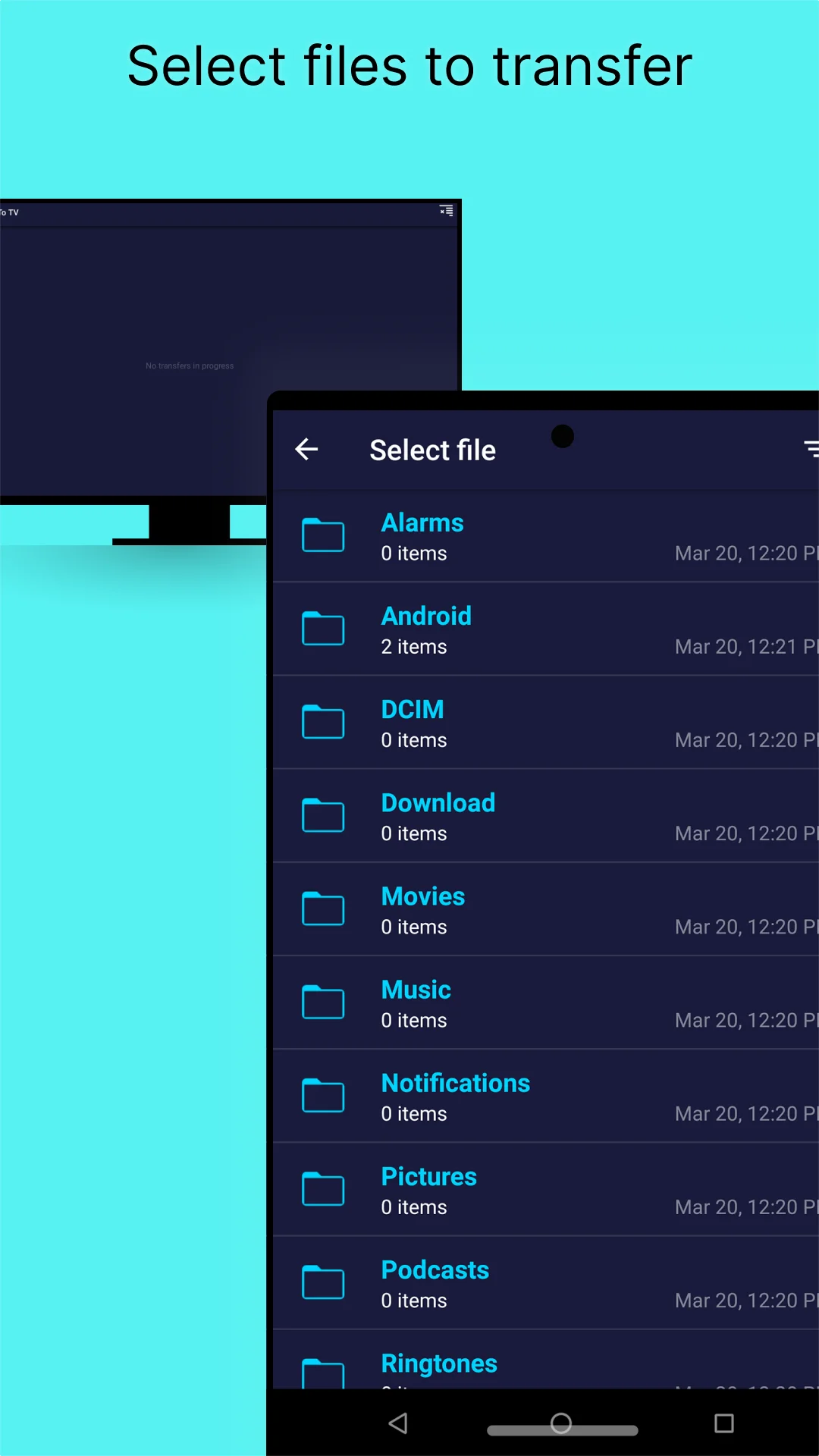
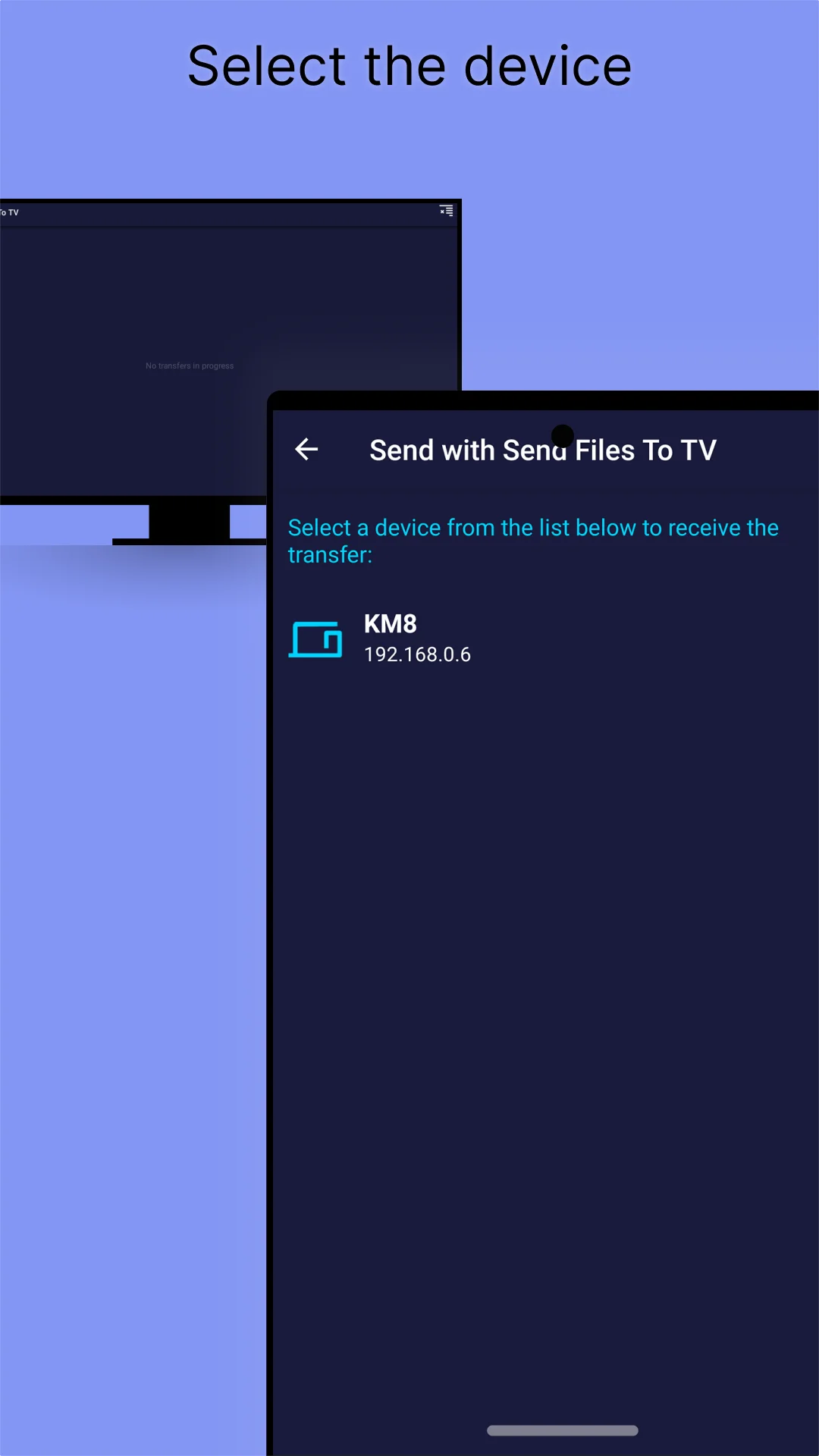
Send the APK to Your TV
Select the APK, choose your TV as the receiving device, and make sure both devices are connected to the same Wi-Fi.
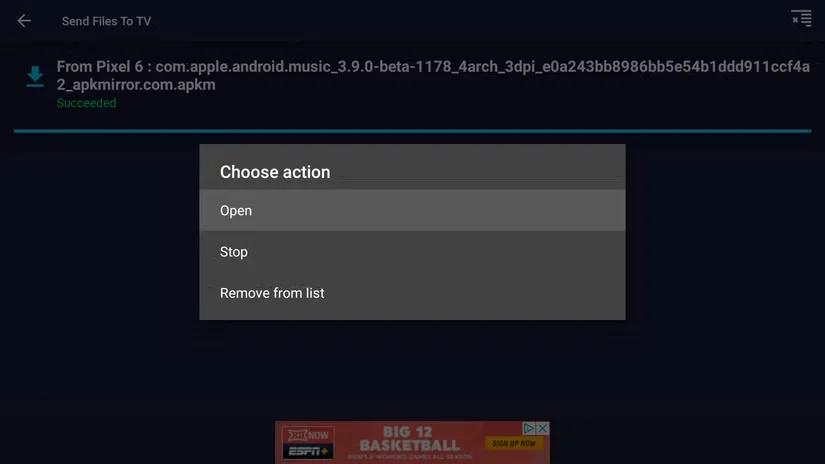
Open the Received APK
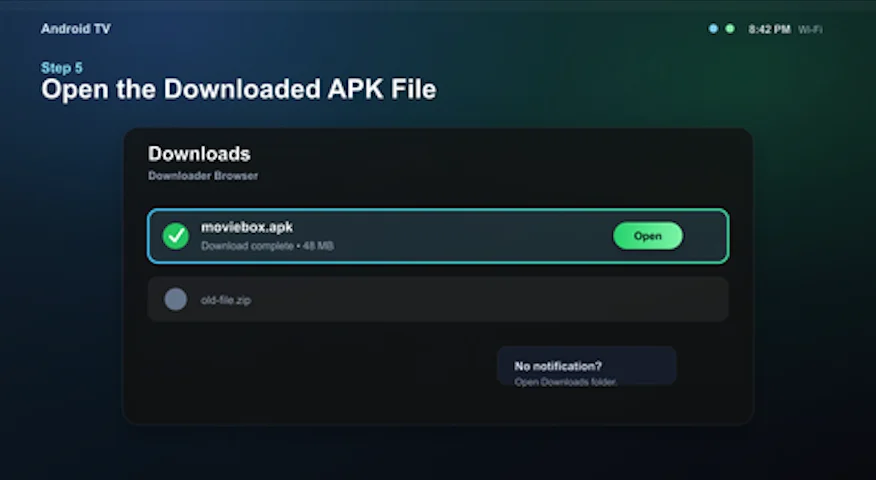
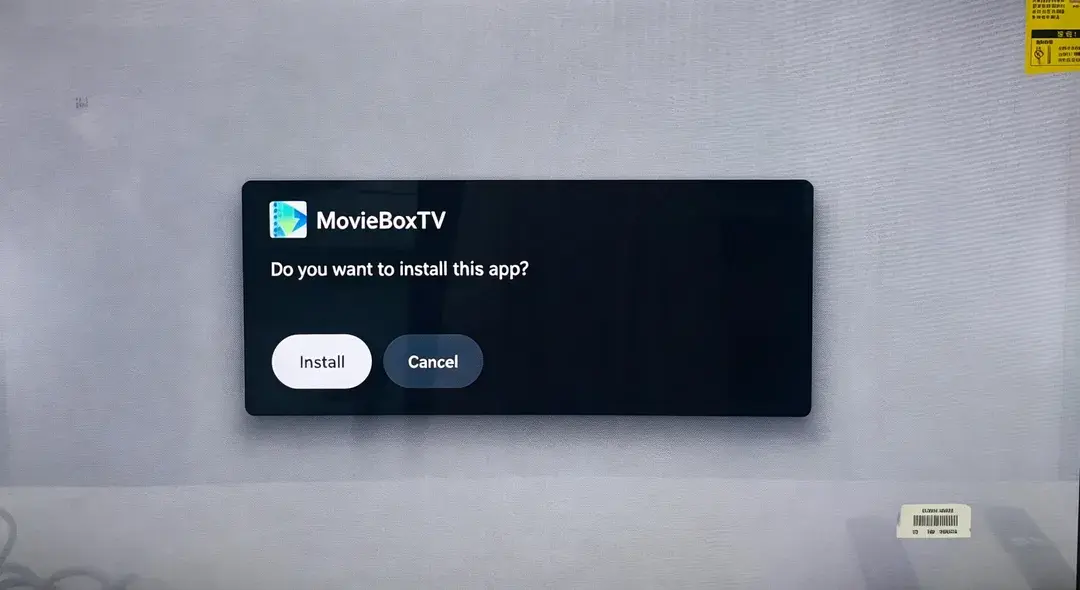
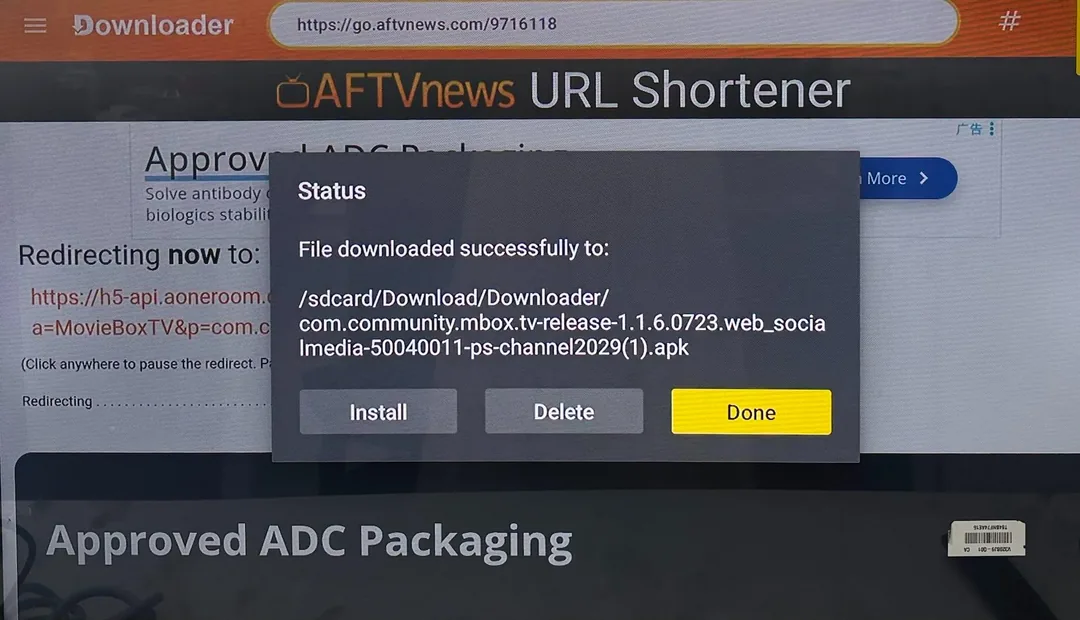
After the transfer is complete, open the received APK file on your TV and tap Install.
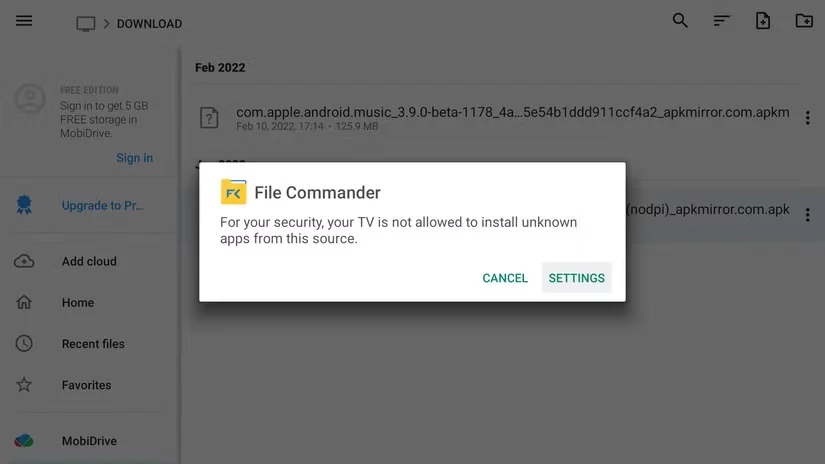
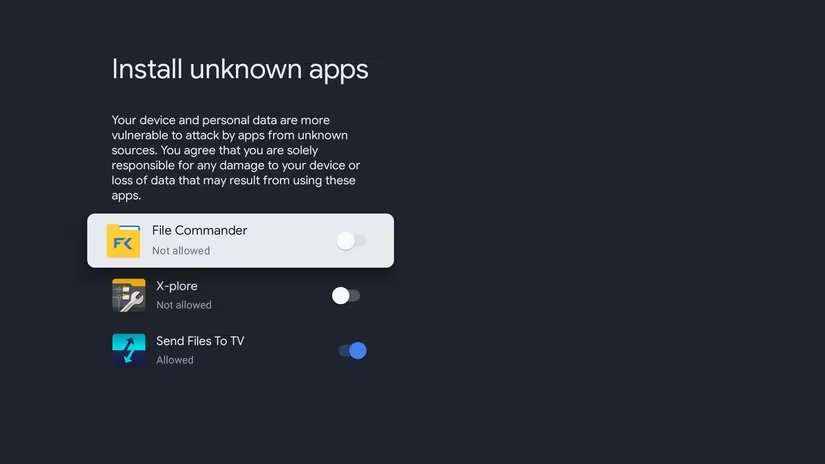
Allow Unknown App Installation
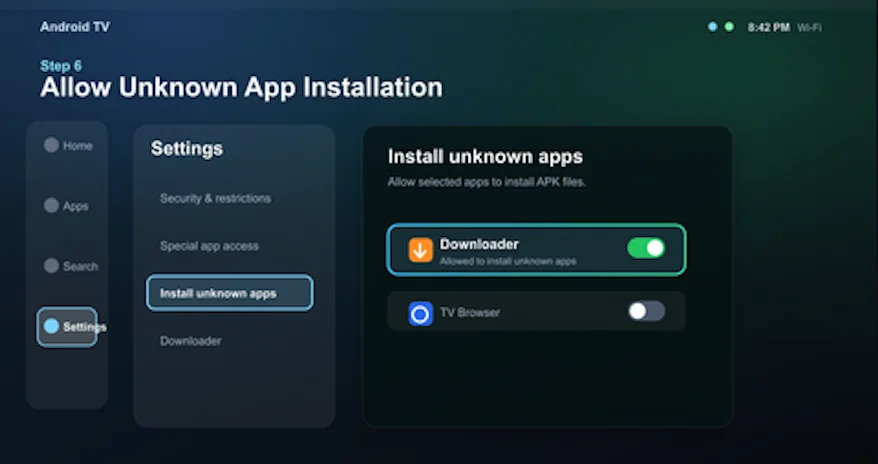
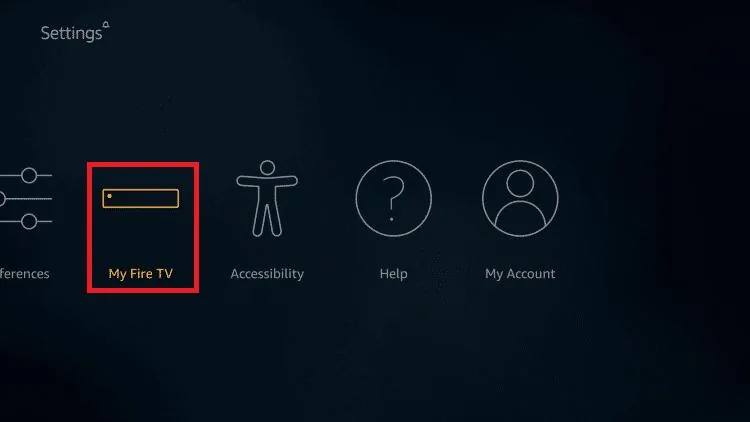
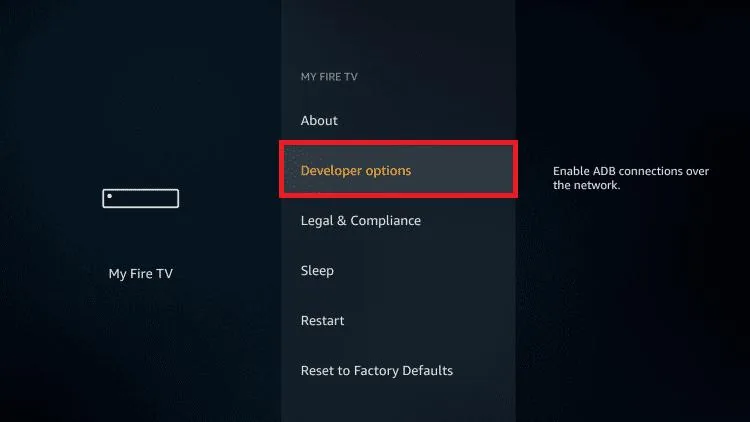
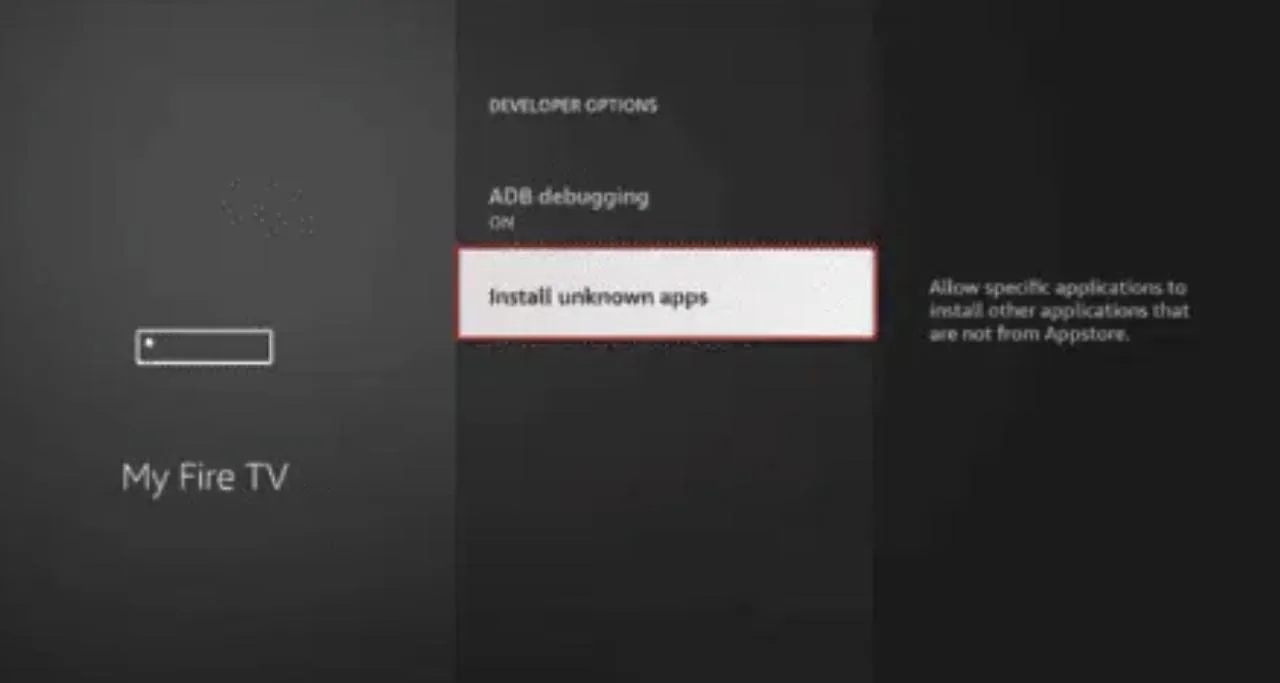
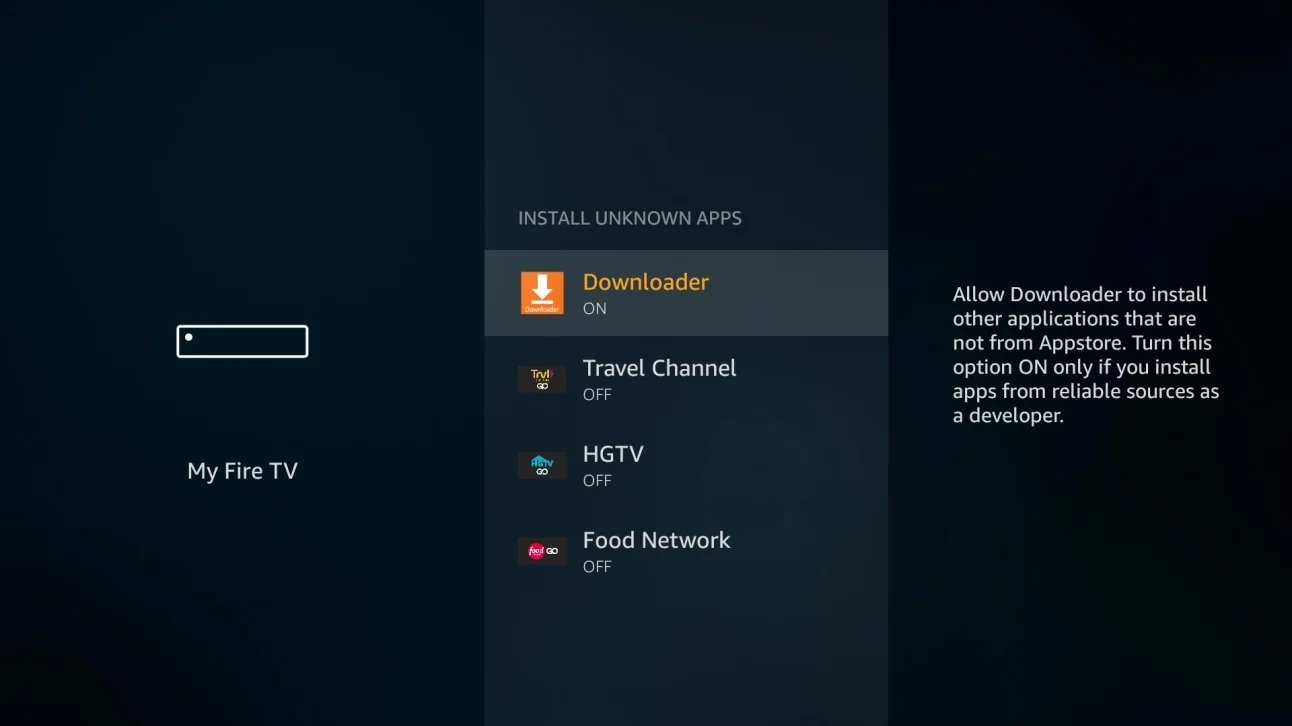
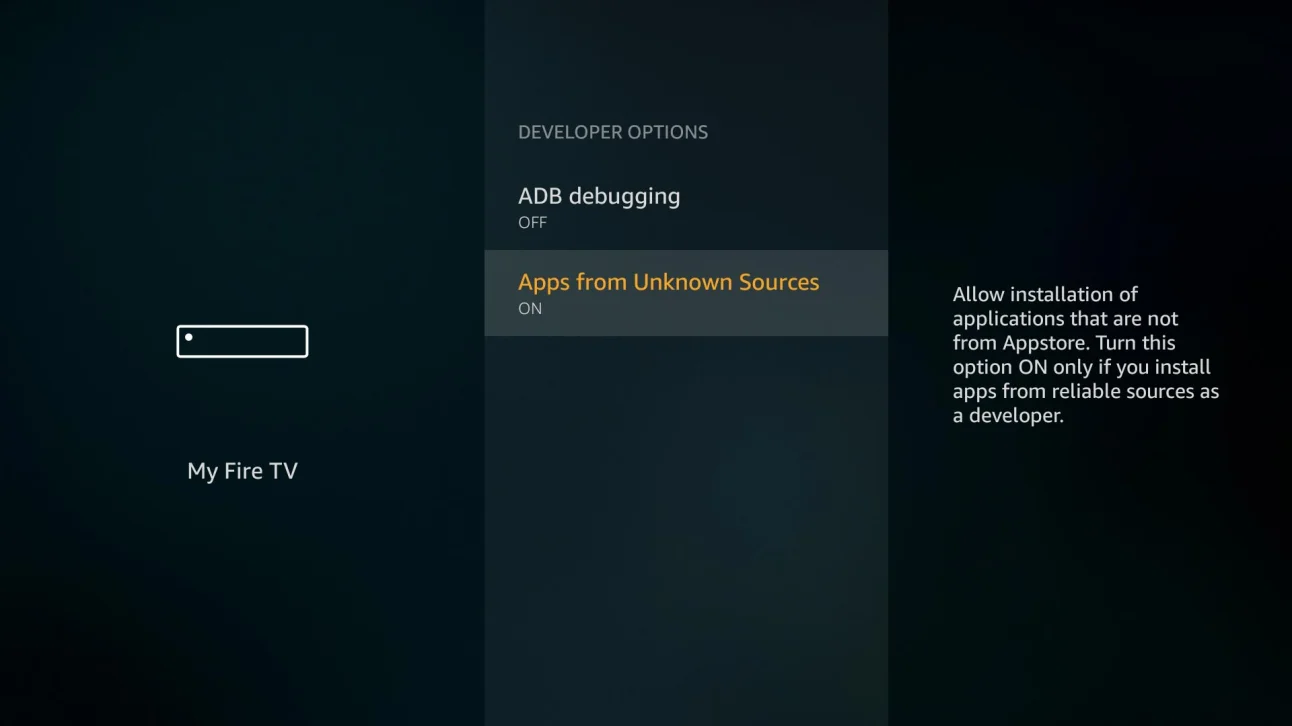
If the system shows a permission prompt, go to Settings and allow the transfer tool to install unknown apps.
Install the APK
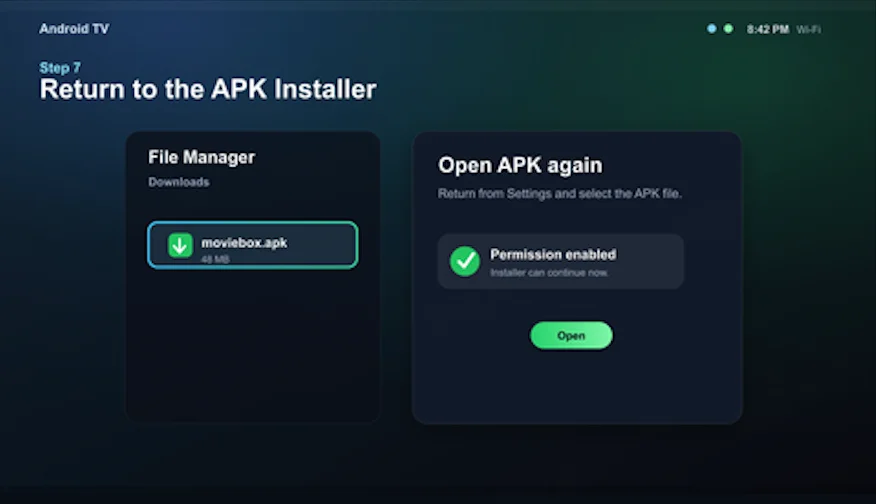
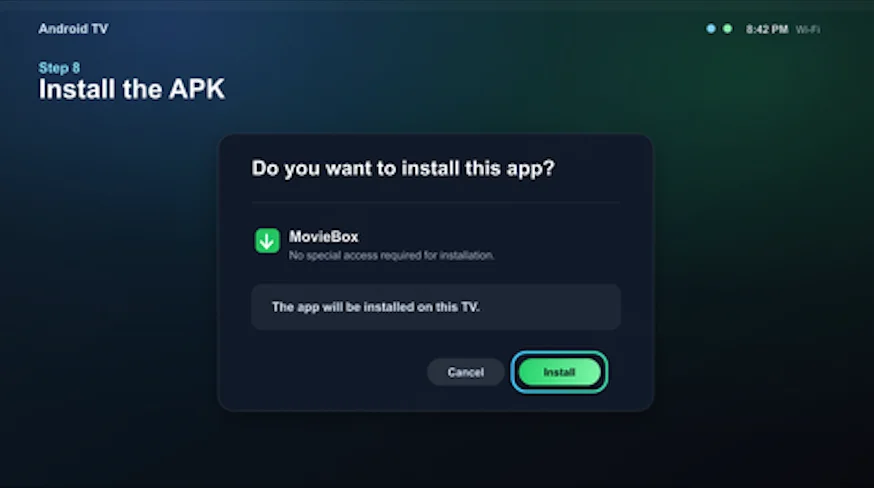
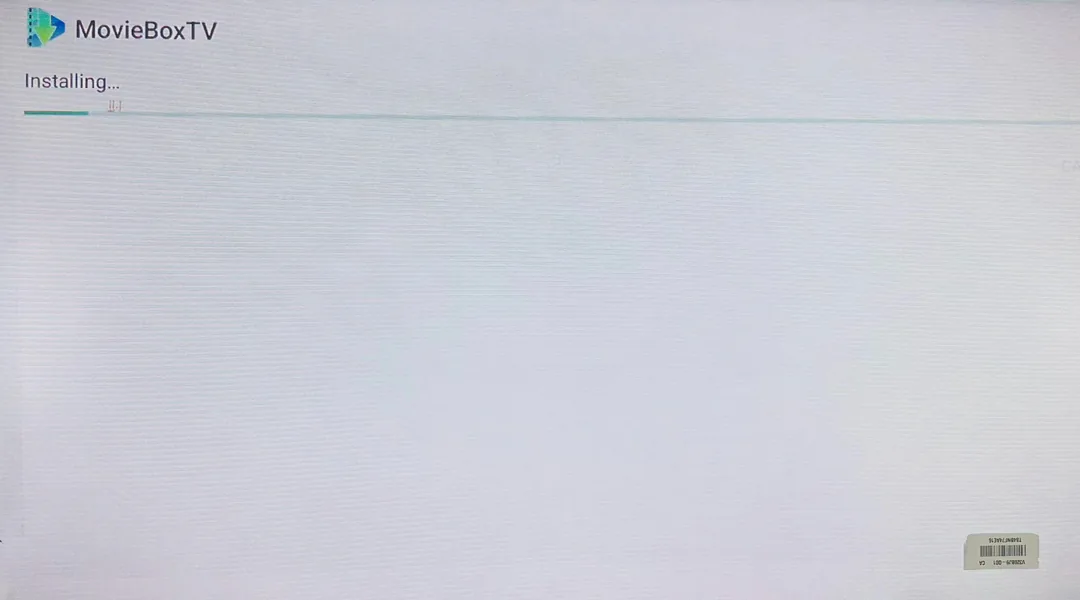
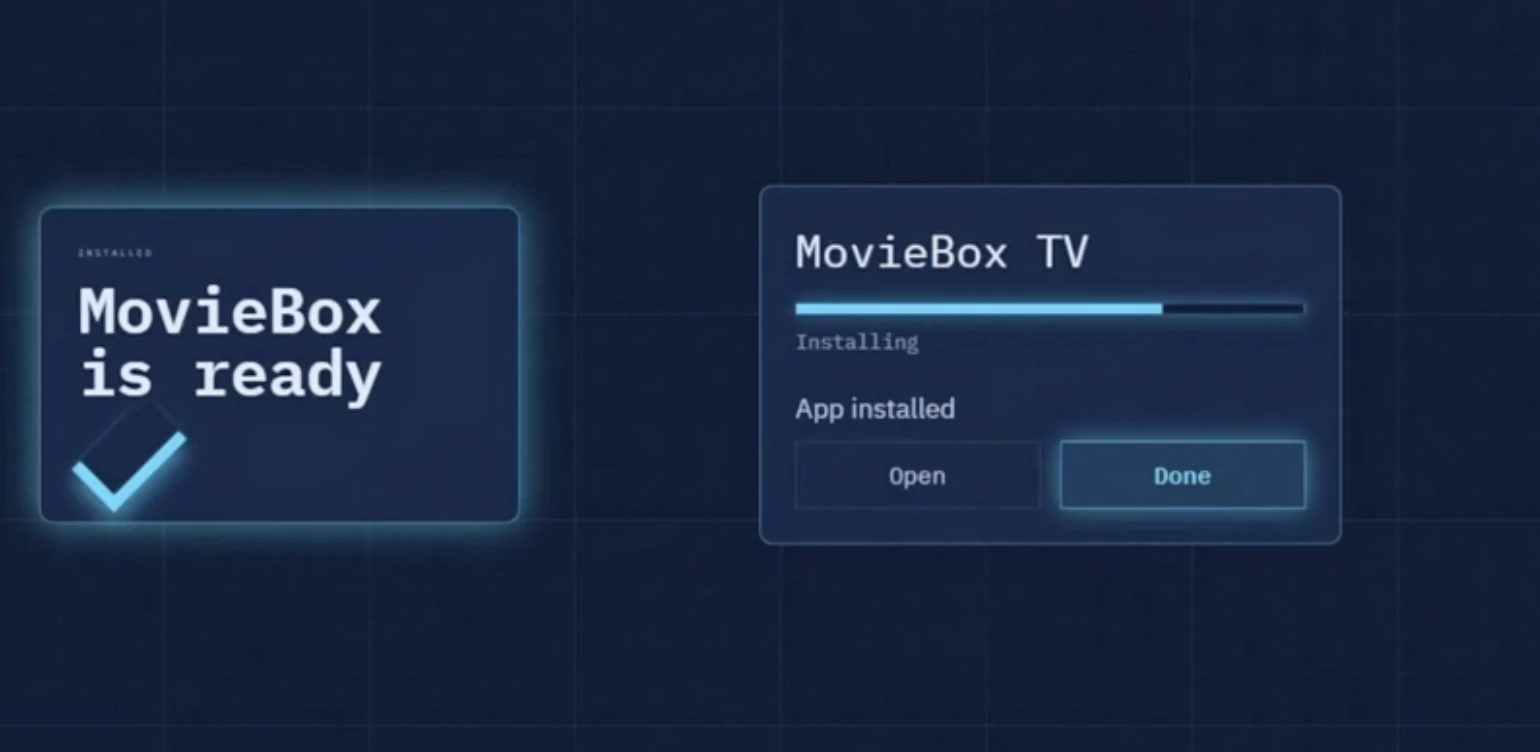
Return to the APK and tap Install again to finish.